Updated 2 min read
Nemo, My Favourite File Manager
- #guide
- #linux
- #nemo
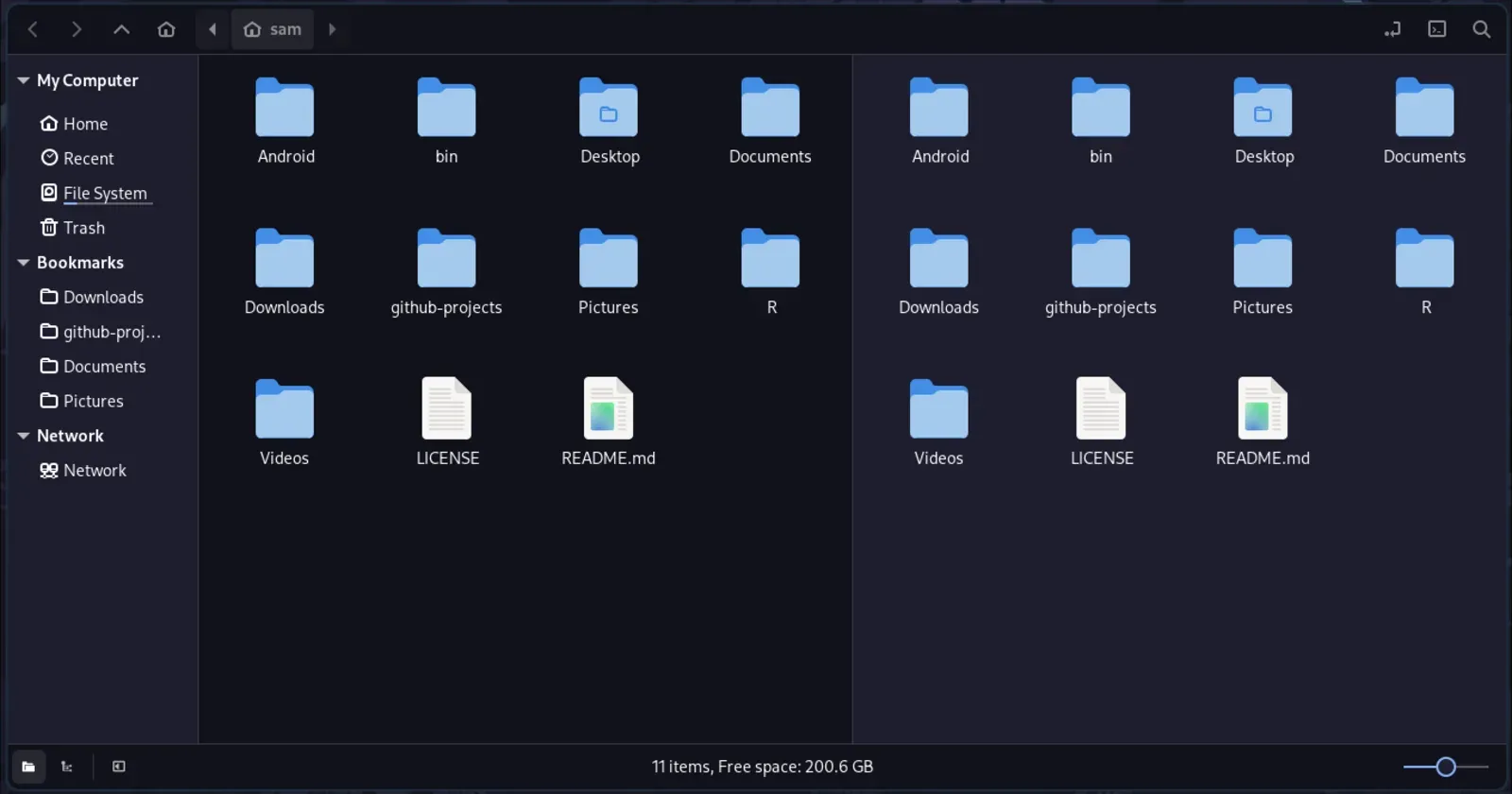
Update (September 2026): I no longer use Nemo. I first picked it up on Linux Mint Cinnamon and kept using it when I moved to Arch Linux with GNOME. These days I’m on KDE Plasma, and since Dolphin is its default file manager, I’ve happily settled on it. Nemo is still a great file manager, so if you use it, I hope this guide helps.
Nemo (opens in a new tab) is the file manager from the Linux Mint team, and the default on the Cinnamon desktop. Here is how I set it up, and the keyboard shortcuts I used the most.
Things to do after fresh installation
-
Set Nemo as the default file browser.
xdg-mime default nemo.desktop inode/directory application/x-gnome-saved-search -
Set your terminal as the default terminal for Nemo with
gsettings set org.cinnamon.desktop.default-applications.terminal exec terminal-name. I use Alacritty as my terminal, so:gsettings set org.cinnamon.desktop.default-applications.terminal exec alacritty -
Install Nemo File Roller, the file archiver extension for Nemo. It lets you extract and compress files.
sudo pacman -S nemo-fileroller
Customisation
-
To change the theme of Nemo, install the theme and set it with
gsettings set org.gnome.desktop.interface gtk-theme new-theme. I use the catppuccin-mocha theme; it has a nice dark interface.yay -S catppuccin-gtk-theme-mochagsettings set org.gnome.desktop.interface gtk-theme Catppuccin-Mocha-Standard-Blue-Dark -
Install lxappearance, then use it to change the GTK theme for widgets as well.
-
You can hide the menubar from View -> Menubar (press
Altto show it again after hiding it). -
You can customise your toolbar from Edit -> Preferences -> Toolbar.
-
There is more on the Arch Wiki page for Nemo (opens in a new tab).
Keyboard shortcuts
Panes
F3: Toggle extra pane (split view that shows two folders side by side).F4: Toggle terminal in the top pane (requires the Nemo Terminal plugin).F6: Cycle focus between panes.F9: Toggle left pane (browsing folders only).F8+Arrow keys: Resize panes.
Tabs
Ctrl+T: New tab in current pane.Ctrl+Pg UporCtrl+Shift+Tab: Previous tab.Ctrl+Pg DownorCtrl+Tab: Next tab.Ctrl+Shift+Pg Up/Pg Down: Move tab left / right.Ctrl+W: Close current tab.
Folders
Alt+←: Previous browsed directory.Alt+→: Next browsed directory.Alt+↑: Parent directory.