Updated 3 min read
Managing Dotfiles with a Bare Git Repository
- #guide
- #linux
- #git
- #dotfiles
Update (September 2026): I’ve moved on from Hyprland. As a web developer I live in the browser, and keeping the browser window rules behaving the way I wanted meant revisiting my config after most Hyprland updates. I wanted a setup that just works, so I switched to GNOME and then to KDE Plasma. I’ve found my home in Plasma and plan to stay for a long time. The bare Git repository approach below still works the same no matter which desktop you use.
My dotfiles are available in my dotfiles repository on GitHub (opens in a new tab).
What is a dotfile?
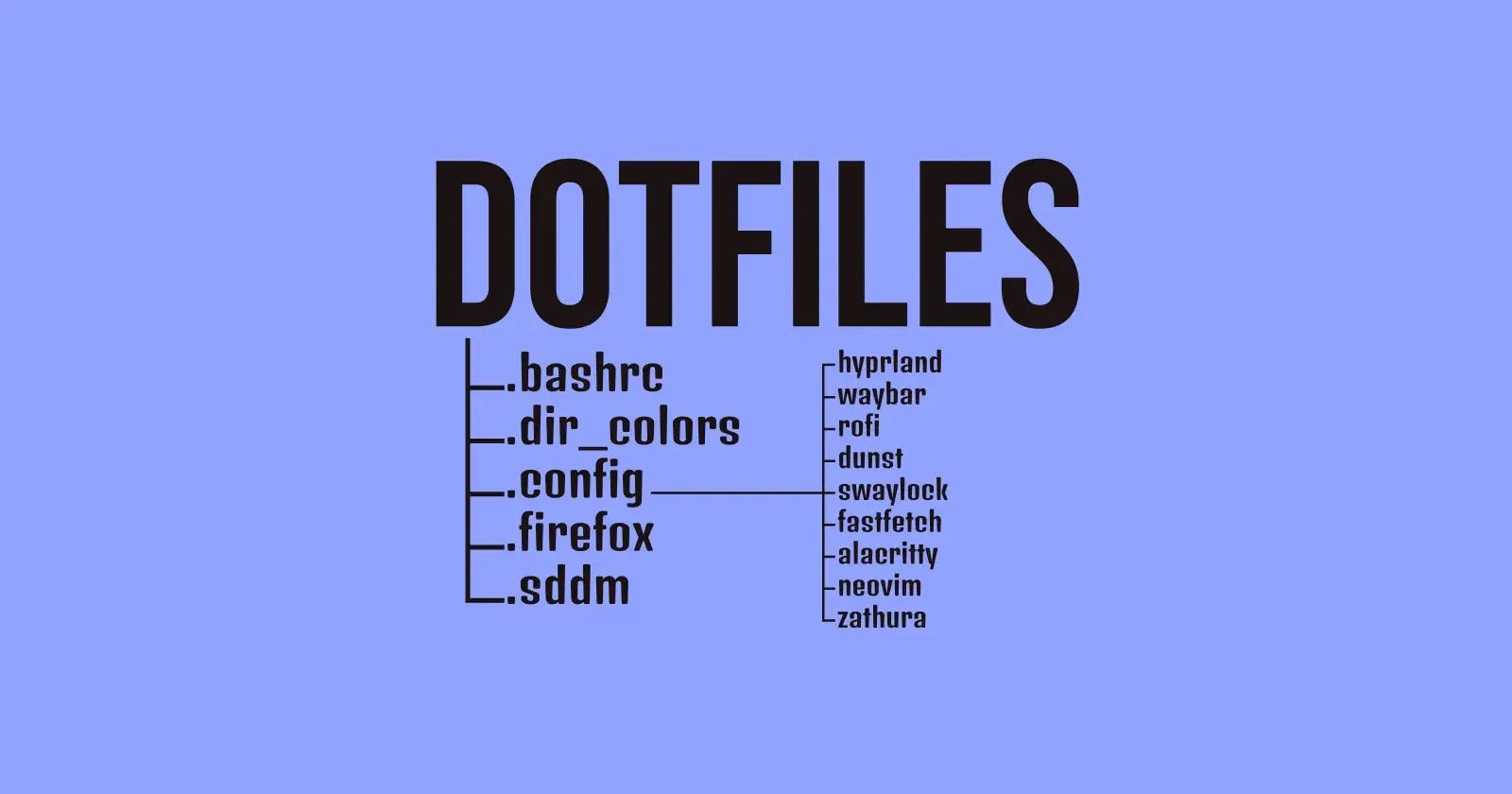
Dotfiles, those files starting with a dot in their names, hold the secret to personalizing and refining your system. These configuration files, like .bashrc or .vimrc, represent the identity of your customized computing environment.
Dotfiles empower users to customize their tools and applications according to their preferences. Whether it’s adjusting the appearance of the command prompt, enhancing the capabilities of a text editor, or tuning version control settings, dotfiles provide a platform for modifications.
Sharing dotfiles has become a tradition among tech enthusiasts—an opportunity to exhibit configurations, shortcuts, and optimizations that boost productivity. By copying dotfiles, users can replicate a crafted setup on any machine, ensuring a consistent computing experience throughout.
How to manage dotfiles?
I was looking for a way to manage my dotfiles and read about the bare Git repository technique in Atlassian’s dotfiles tutorial (opens in a new tab). I find it very convenient. To manage your dotfiles with a bare Git repository, follow these steps:
-
Create a bare Git repository at
~/.dotfilesto track configuration changes.git init --bare $HOME/.dotfiles -
Set up an alias named
configto use instead of the standardgitcommand when working with your dotfiles.alias config='/usr/bin/git --git-dir=$HOME/.dotfiles/ --work-tree=$HOME' -
Tell the repository to hide untracked files, so
config statusand similar commands only show the files you track.config config --local status.showUntrackedFiles no -
Optionally, add the alias to your
.bashrcso theconfigcommand is always available.echo "alias config='/usr/bin/git --git-dir=$HOME/.dotfiles/ --work-tree=$HOME'" >> $HOME/.bashrc -
Now you can version any file in your
$HOMEfolder with the usual commands. Just useconfigwhere you would normally typegit:config status config add .vimrc config commit -m "Add vimrc" config add .bashrc config commit -m "Add bashrc" -
Add a remote named
originto your bare repository.config remote add origin <remote_repository_url> -
Verify the remote has been added successfully.
config remote -v -
Push the changes to the remote repository (e.g., GitHub). If your branch is called
main, use that instead ofmaster.config push -u origin master -
You can also create different branches and check them out when you want to change the theme. There’s a preview video in the dotfiles repository (opens in a new tab).
config branch
config checkout mocha
config checkout dark
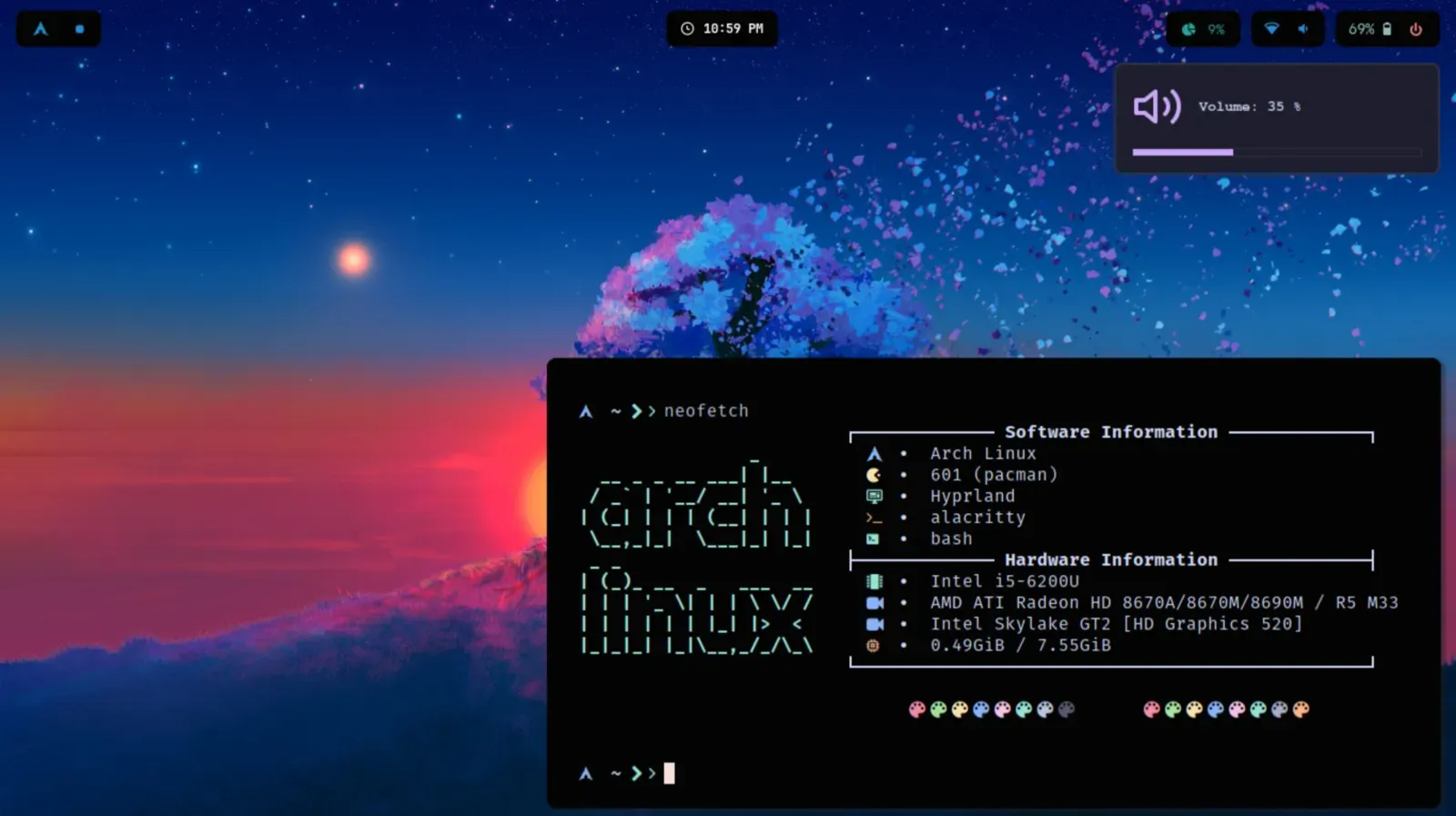
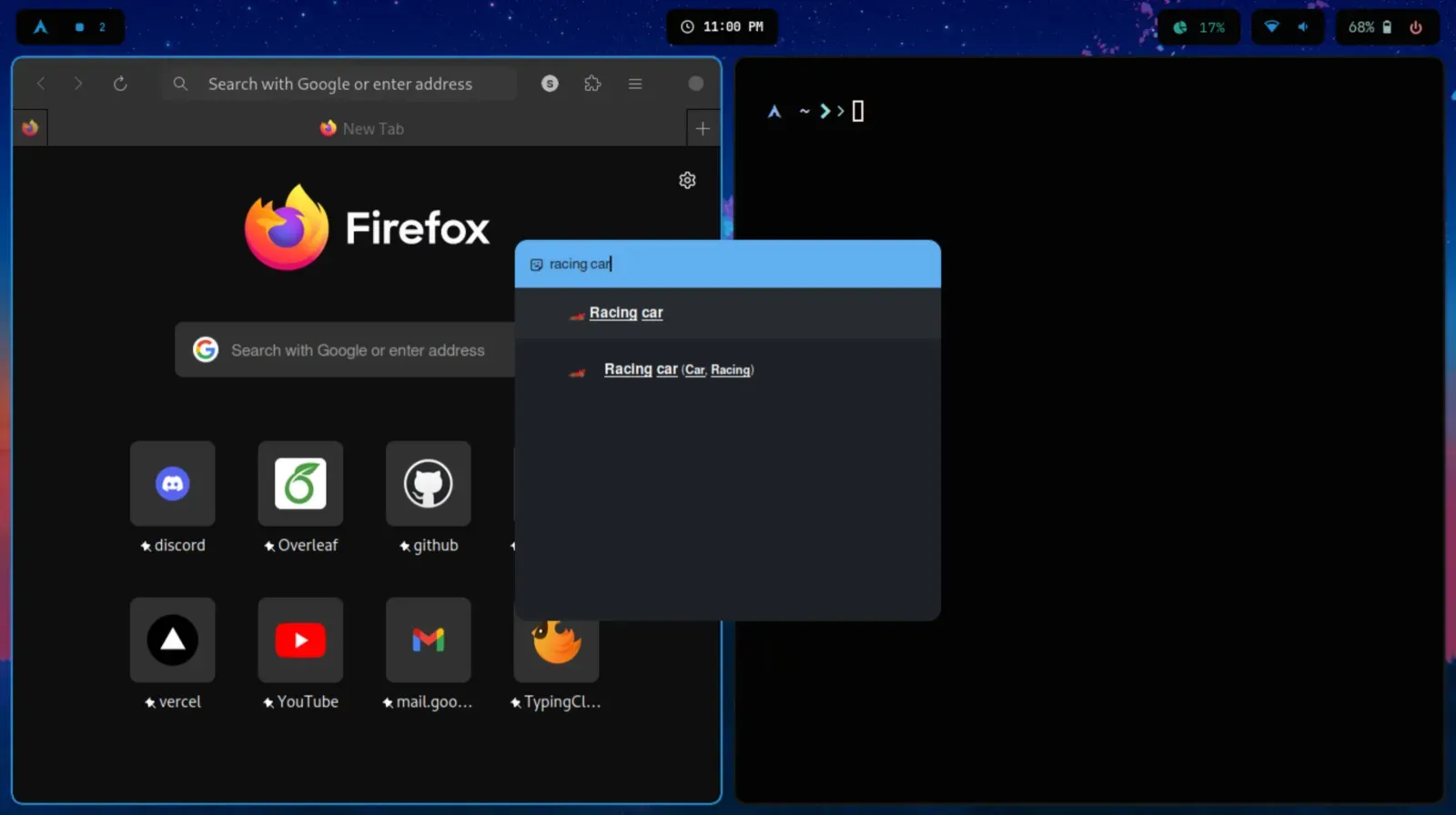
Mocha config
These configuration files are in the mocha branch (opens in a new tab).
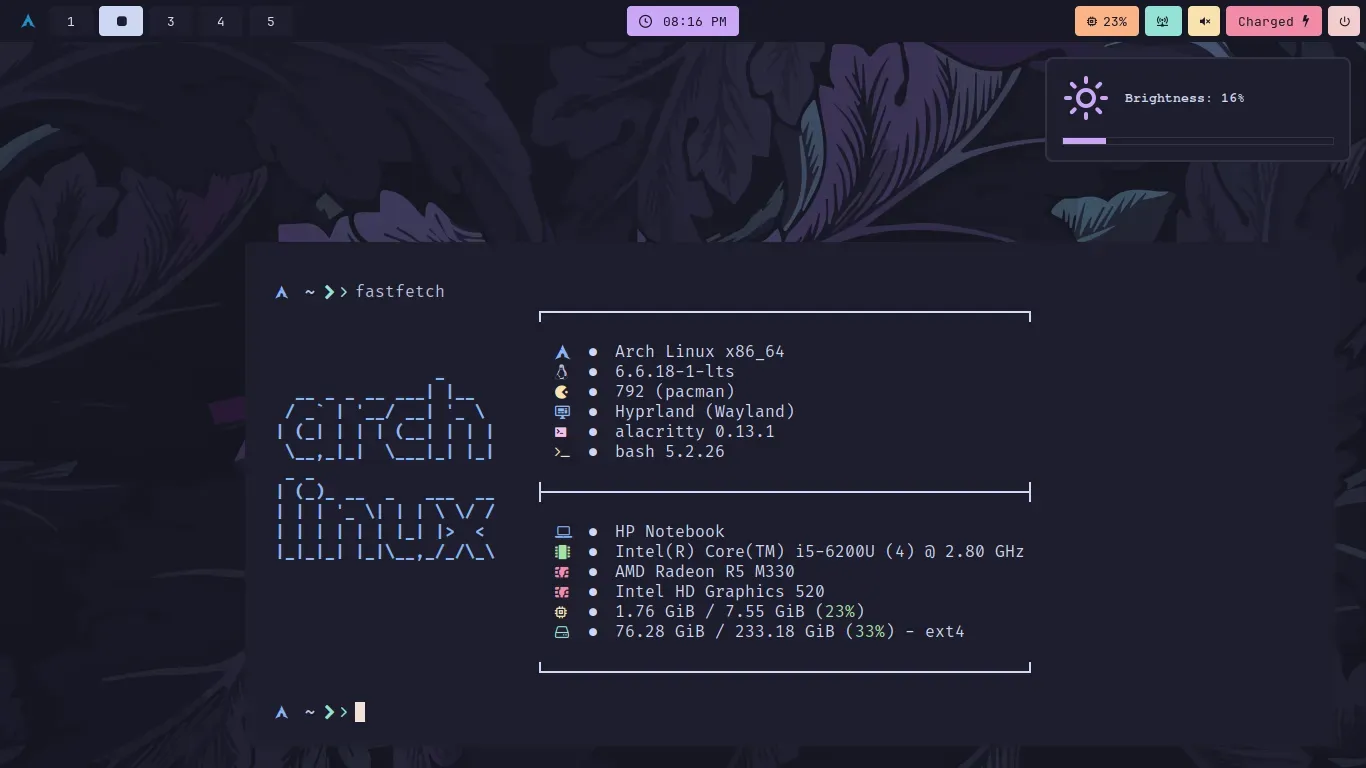
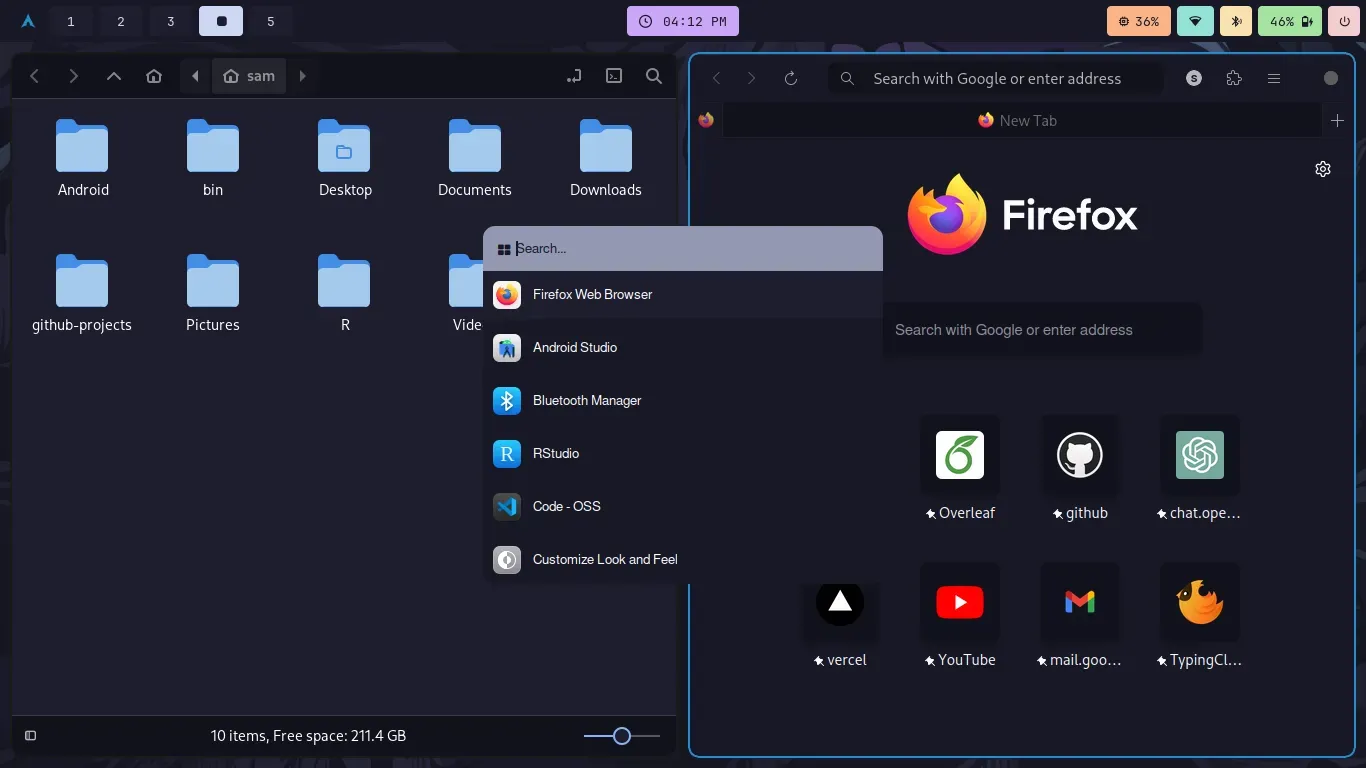


Dark config
These configuration files are in the dark branch (opens in a new tab).